2- Manage payments
Manual payment management
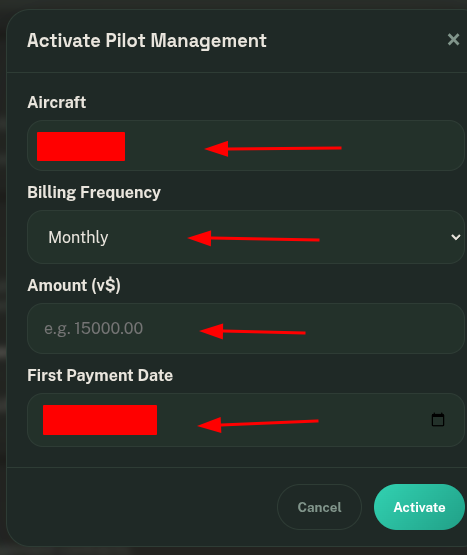
When you click on Activate Pilot Management, you can configure the installments, their corresponding amounts, and the date of the first payment.
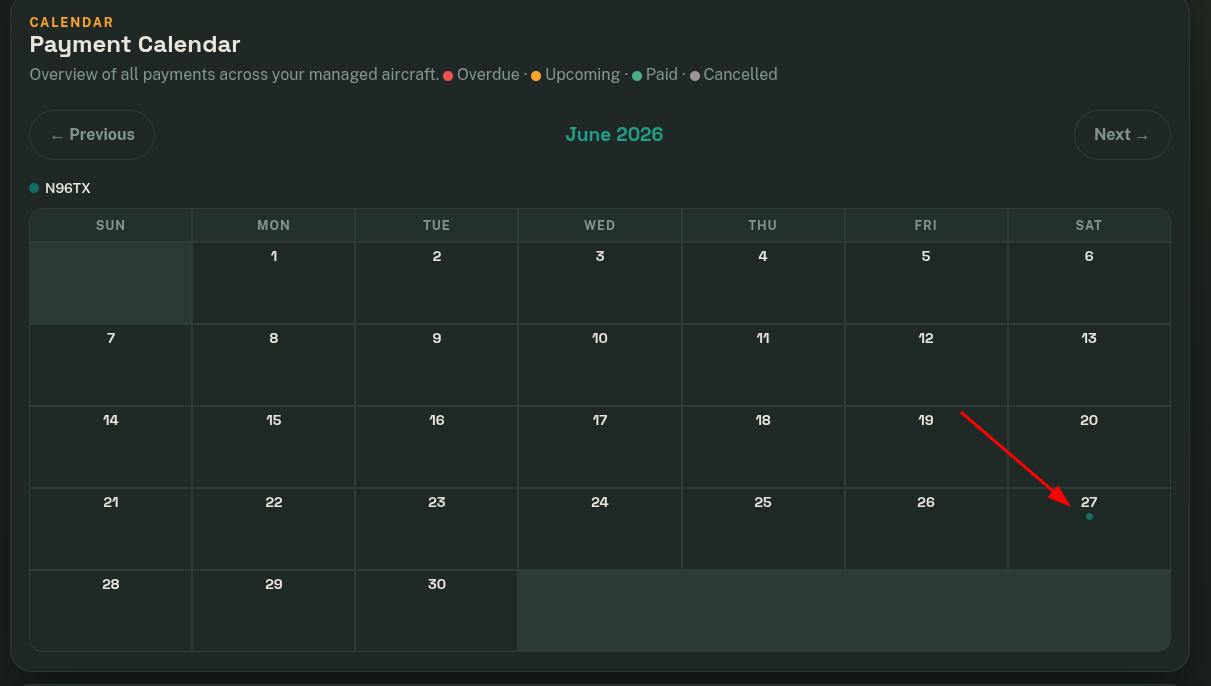
At this moment, the calendar will display the next payment that the pilot needs to make.
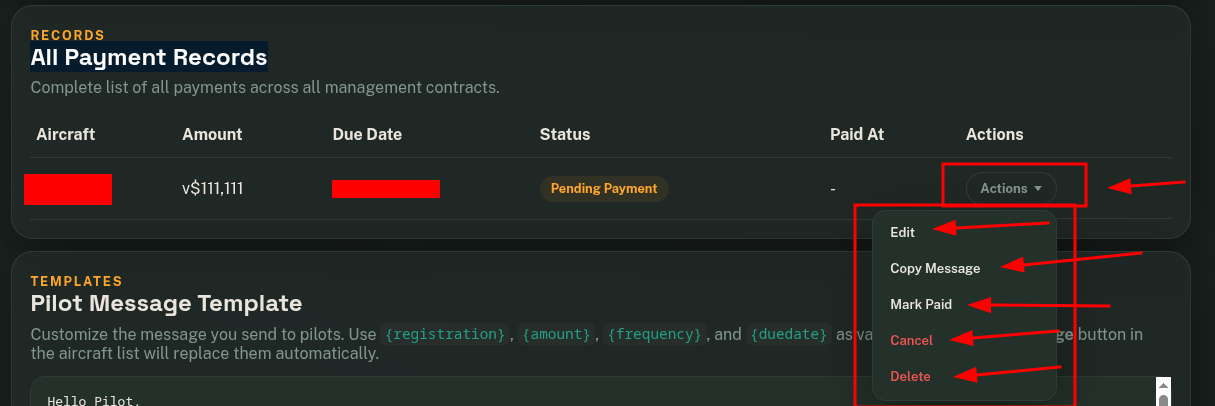
In the Pending Payments module, upcoming due payments within the next 7 days or less will be displayed. Alerts will also appear on the dashboard to notify you of the next payment.
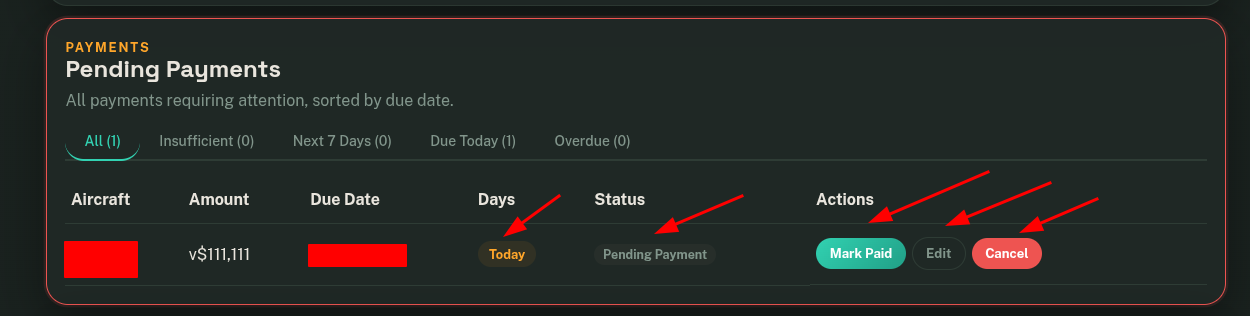
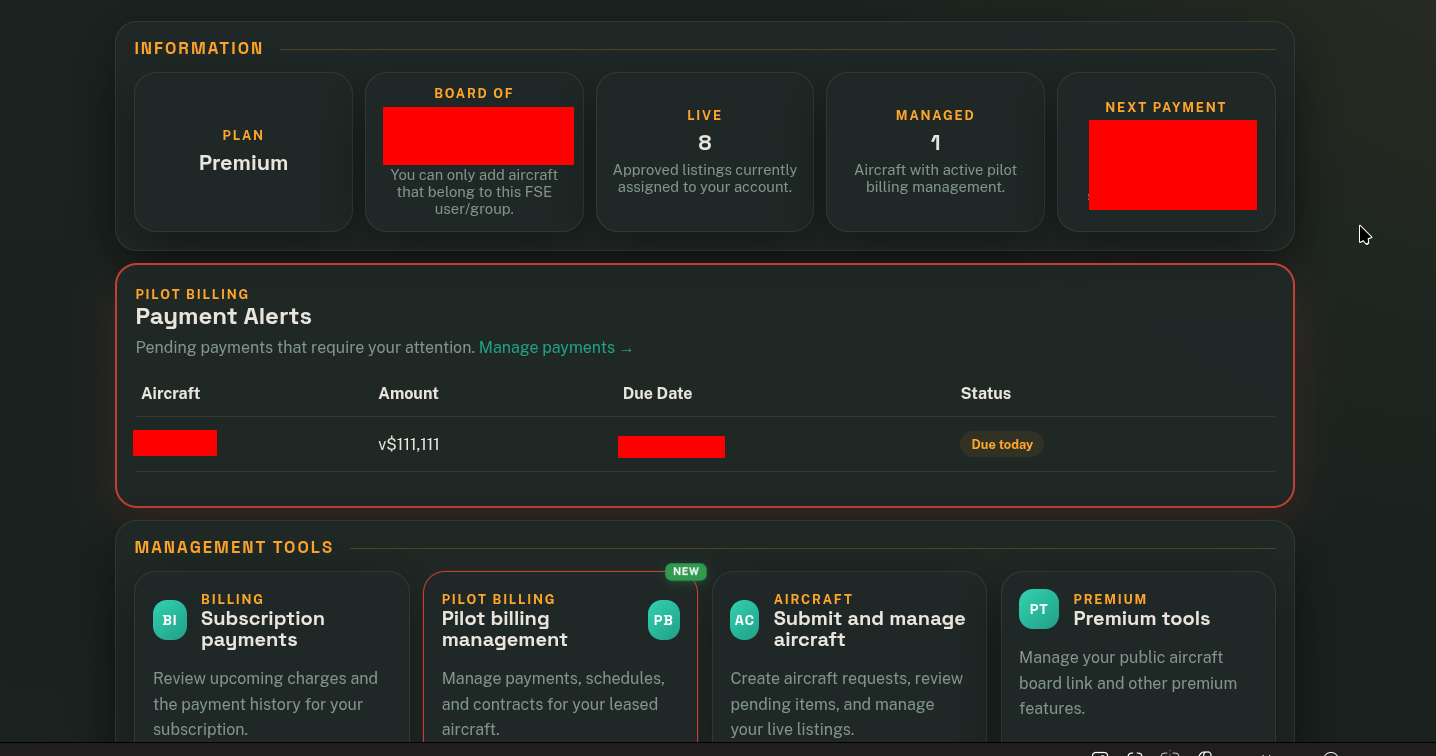
In the All Payment Records module, you will be able to view all upcoming pending payments. From this panel, you can edit, mark as paid, cancel, or delete payments.
When you click on Pay, the next payment will be automatically generated according to the configured payment frequency.
Automatic Payment Gateway
When you enable FSE Payment Gateway, payments start being managed automatically and will be handled by FSELeaseHub.
At this moment, all payments that were previously configured manually are converted into automatic payments and assigned a unique payment ID.
The best and easiest way to manage these payments with the pilot is to contact them and provide the new information, including the payment ID, due date, amount, and the group where the payments must be made.
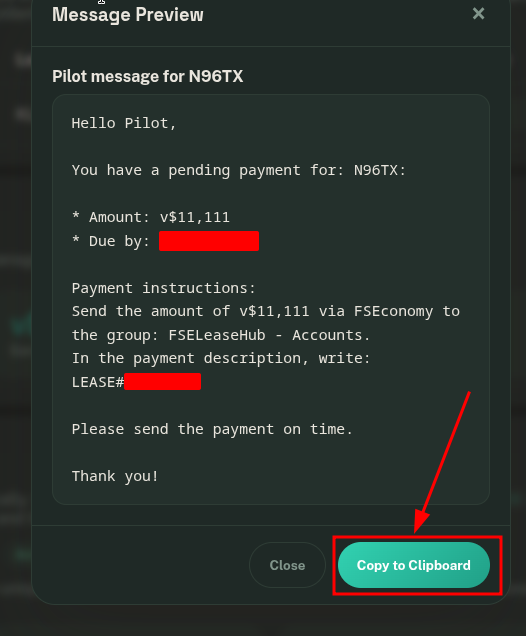
For this reason, we have made this task easier for you, and you can use the Text Template system. A text template is a block of information with a format and variables that you only need to copy to your clipboard and send to the pilot.
Go to My Leased Aircraft.
Click on Copy Message.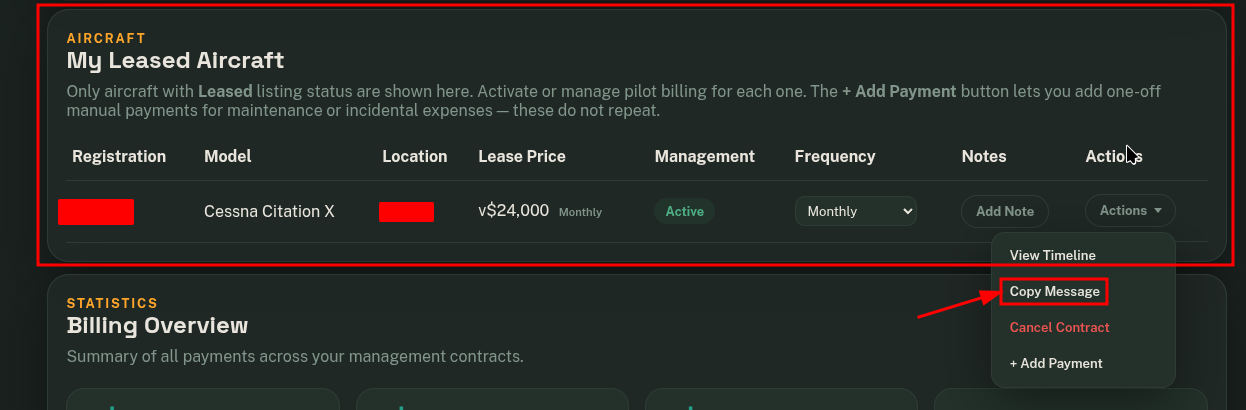
Text Template Customization
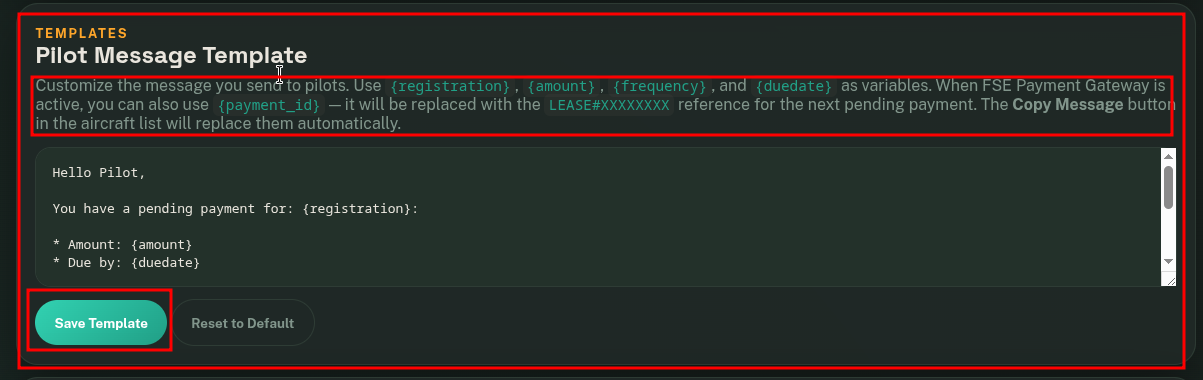
The previous text template can be customized.
Go to the Pilot Message Template module.
Save Template